


How to Work with Your Connected Startups
When a Program Administrator connects you to a startup, you may receive an email confirming the connection — though this depends on whether the admin has enabled that notification. To make sure you always have an up-to-date view of your connected startups, check your Profile page directly.
Connections between mentors and startups are managed by Program Administrators. If you believe you should be connected to a startup but cannot see it, contact your program administrator.
Where to Find Your Connected Startups
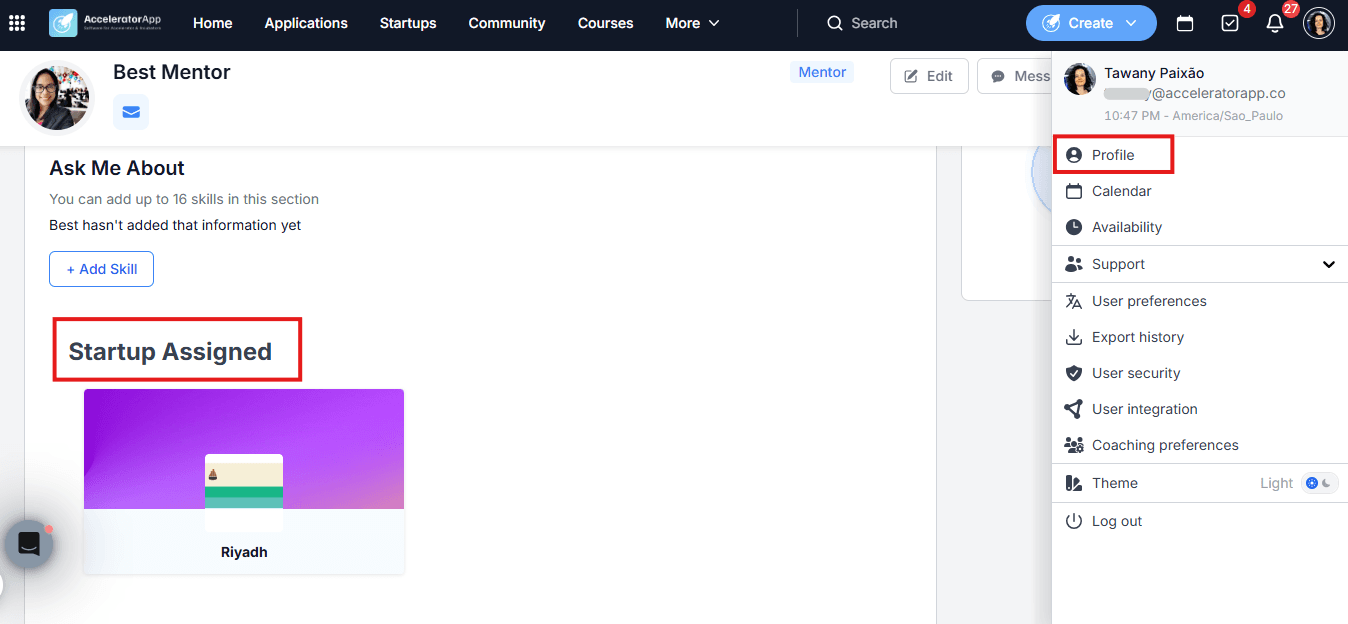
The most reliable way to find the startups directly assigned to you is to go to your Profile page — click on your profile picture in the top-right corner and select Profile. Your connected startups will be listed there.
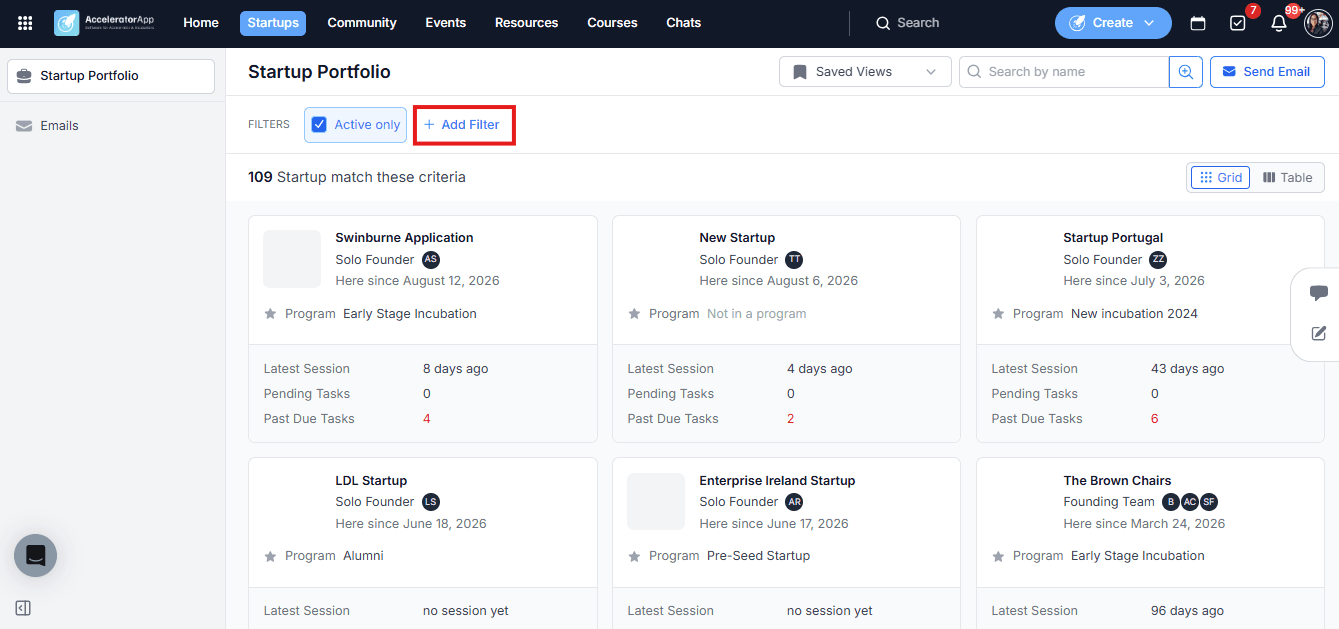
You can also browse the Startup Portfolio from the Startups tab in the top navigation menu, or from Community tab. Keep in mind that this view shows all startups according to the visibility permissions of your user role — not only the ones connected to you specifically. From the Startup Portfolio you can filter by program, tag, or other criteria, and send emails to startups directly.
Step-by-Step
1. Browse Your Connected Startups
Go to your Profile page to see the startups directly assigned to you. Click on any startup to open their file.
2. Open a Startup File
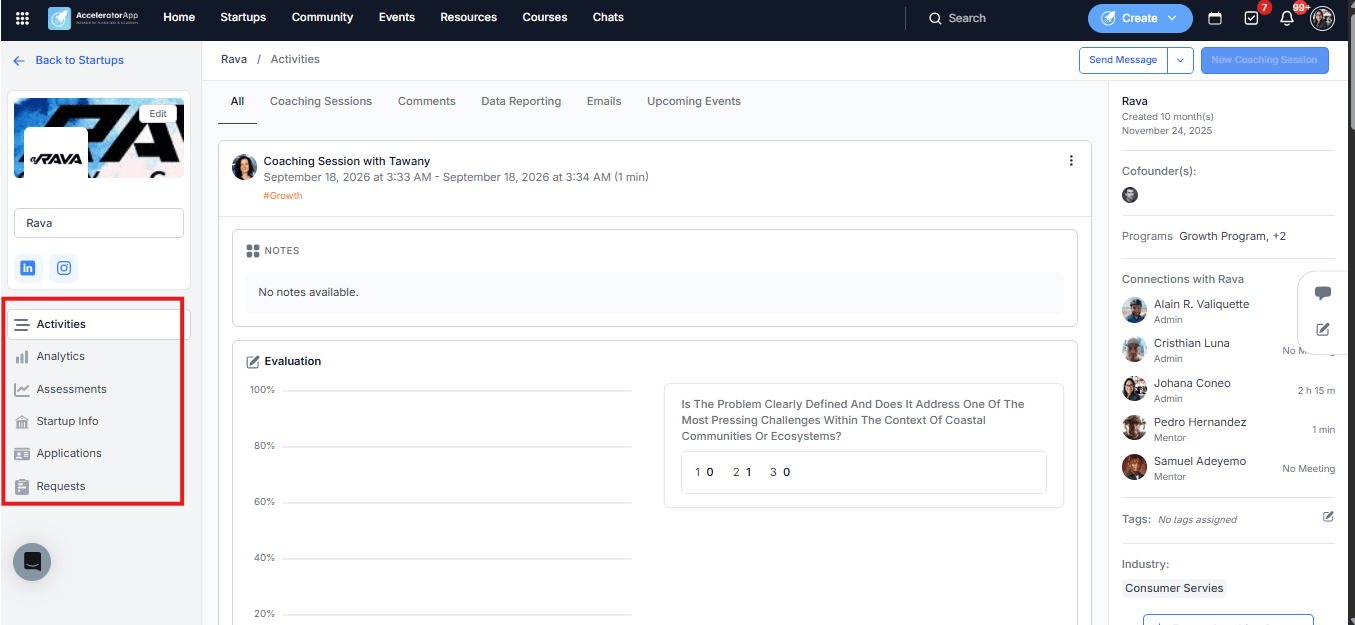
Click on any startup to open their file. The tabs and information visible to you inside the startup file depend on the access permissions configured for your user role by your program administrator — you may not see all tabs described below.
Depending on your access, you may find:
- Activities Feed — a log of all activity related to the startup.
- Assessments — analytics of the coaching sessions you have evaluated for this startup.
- Analytics (Metrics) — the startup's performance metrics and data.
- Company Info — the startup's profile, including co-founder information.
- Milestones — create and review milestone plans for the startup.
- Applications — view the startup's application history and progress through the program's funnels.
- Feedback Requests — access feedback requests submitted by the startup. Available on Premium plans only.
3. Take Actions with a Connected Startup
Depending on your role permissions, from the startup file or portfolio you may be able to:
- Assign tasks to the startup and its co-founders.
- Invite co-founders to a meeting.
- Send emails to co-founders.
- Conduct and record coaching sessions, including evaluations and session notes.
Best Practices
- Check your Profile page first. Your Profile gives you the most direct view of the startups assigned to you — faster than browsing the full portfolio.
- Use the Startup Portfolio for filtering and bulk actions. If you need to filter by program or tag, or send an email to a group of startups, the portfolio view is the better starting point.
- Review the startup's profile before your first session. Familiarizing yourself with the company info, co-founders, and any existing milestones helps you make the most of the initial meeting.
- Use the Assessments tab to track your own session history. This gives you a consolidated view of the evaluations and notes you have recorded for each startup over time.
- Assign tasks after each session. Giving startups clear follow-up actions helps maintain momentum between coaching sessions and creates a traceable record of progress.